Landing a Pokémon Center drop can feel like a lottery, between queue times that make no sense, errors that boot you at checkout, a website that feels like it was made in 2010, and stock that vanishes in minutes.
We’ve been through all of it, so here’s our running guide, walking you through what to do before, during, and at checkout, plus a full breakdown of every error code and what it means. We’ll keep adding to it as new issues come up!
We’re a small team of two and our links keep woahpoke running. As an eBay Partner Network affiliate, we earn from qualifying purchases at no additional cost to you. Learn more.
Before the Drop
Use Chrome or Firefox
These are the browsers the site and its queue system play nicest with, and they’re what we’ve had the most consistent luck on. Use a normal browser window and avoid private or incognito windows (they can trip the bot detection too).
Avoid Safari if you can. Its stricter default privacy features tend to interfere with the queue’s cookies and session handling, which means Safari users hit session errors more often than they should.
Be on a computer
Use a computer as your primary device, not your phone. This one matters more than people think. On a phone, the moment your screen locks or you switch to another app, the browser tab can unload and drop your session and kick you back to the end of the queue. On a computer you can leave the window open and completely untouched for the entire wait without it backgrounding on you (as long as it doesn’t fall asleep). If a drop matters to you, do it on a desktop or laptop!
Have 2 devices on 2 networks
That said, your phone still has a role to play as a backup. One of the most reliable community tactics is doubling your entries: as soon as the queue opens, join on your computer on WiFi and join on your phone on cellular data. Because the two are on different IP addresses, they count as separate entries, giving you two shots at getting through instead of one. Your computer is still your main horse for all the reasons above, but running your phone alongside it means you’ve got a second ticket if your desktop gets booted or lands a bad queue ETA.
(Just remember the one order per household rule at checkout. This is about improving your queue odds and not buying twice.)
Sign in ahead of time
Log into your Pokémon Center account before the drop goes live, not during it. Trying to sign in mid-rush is a great way to lose your spot or trigger an error. If you don’t have an account, you can check out as a guest, but being logged in beforehand is smoother. Add your shipping info while you’re in there too!
Clear your cache
Clearing your browser cache before a drop is one of the best ways to preempt an Error 17. A fresh browser state means fewer weird session hiccups when traffic spikes. Do it in advance, get logged in, and then leave the site alone until go time. We cover all the common error codes below and what to do if you run into one of them!
Know when it’s happening
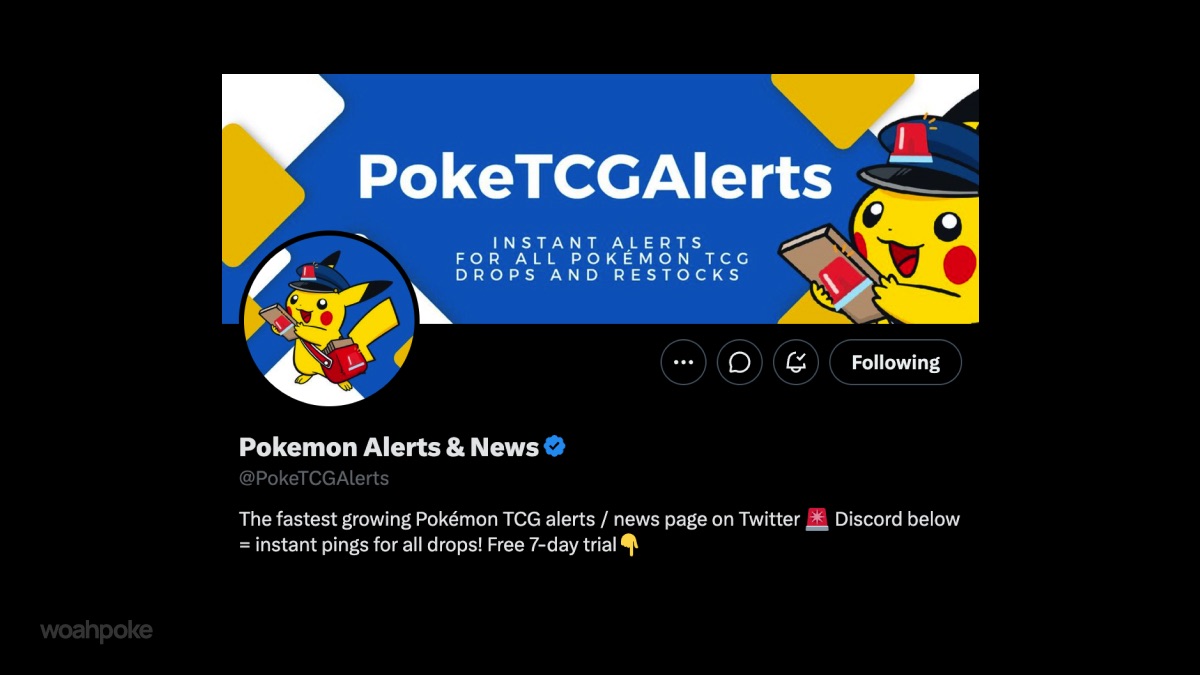
Half the battle is just knowing a drop is live. Restocks and new set releases often go up with little warning and sell out fast, so following the accounts that track them in real time is the single best thing you can do.
On X (Twitter), tracker accounts post the moment the queue or products go live and often catch surprise restocks. Turn on notifications for a couple of reliable ones:
- Pokémon Alerts and News on X
- Celadon on X (great for Canada)
Plenty of Discord servers also have channels that ping the instant a drop is detected. Find an established Pokémon collecting or restock community and set that channel to notify you.
When do drops usually happen?
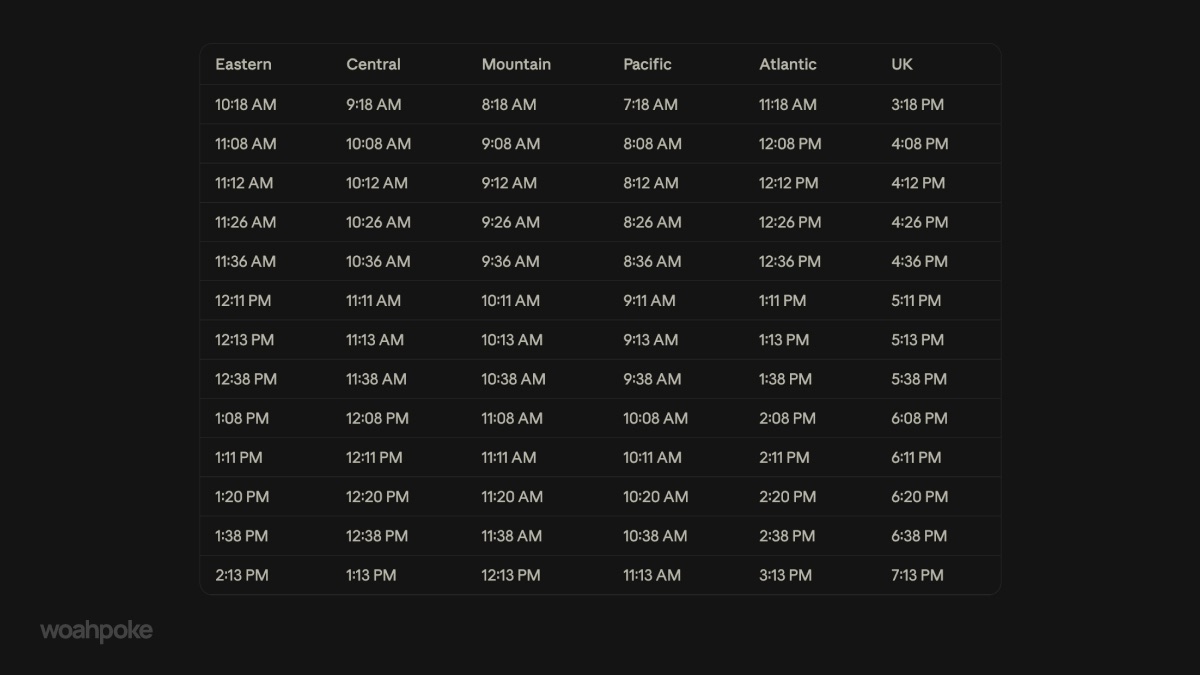
Drops almost never come with an official announcement, they tend to go live at random, which is half of what makes them so stressful. That said, there’s a loose pattern: they usually happen in the morning Pacific time, around lunchtime ET.
The table below shows the windows we’ve historically seen, converted across time zones, so you know roughly when to be ready. Nothing here is guaranteed, so between these windows and the trackers above, you’ll have the best shot at catching one. It just helps to be near your computer around these times.
Be ready for the CAPTCHA
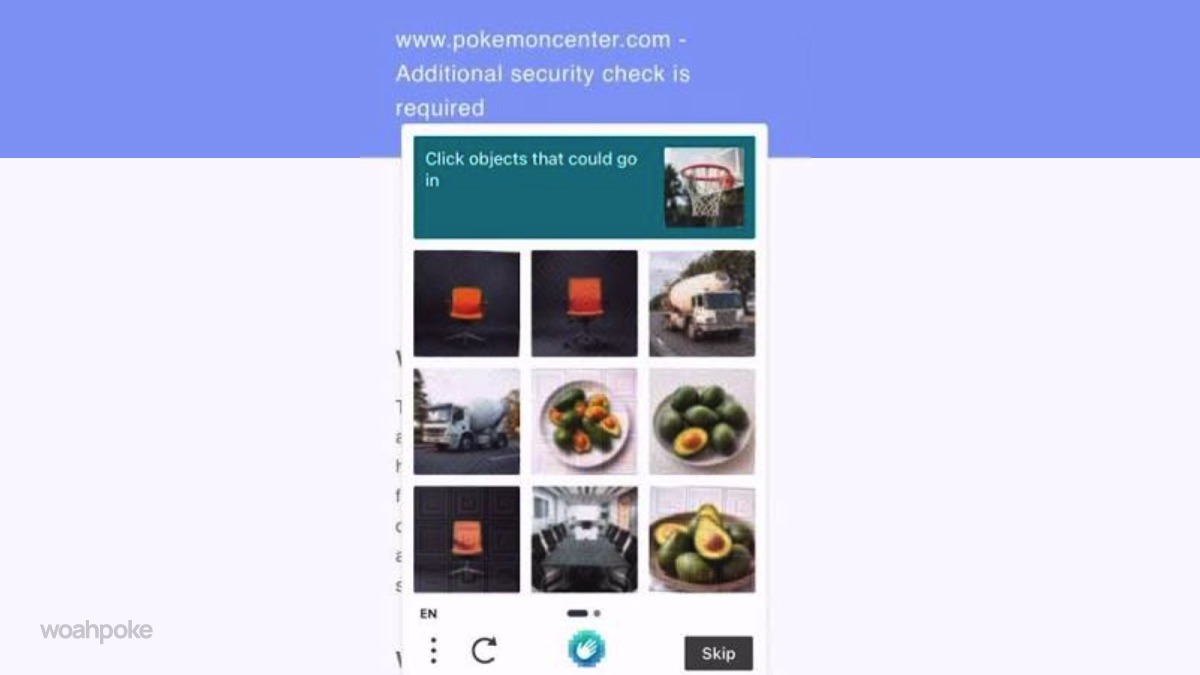
Before you even reach the queue, Pokémon Center often throws a CAPTCHA at you, and they can be strange. We’ve been shown a photo of a phone and asked to select the things that cost more than it, like a plane. They’re not always the straightforward “select the traffic lights” kind, so read each one carefully.
Take it slow here because getting one wrong means more screens. We’ve been hit with as many as 7 CAPTCHA screens in a row before getting into the queue.
The trick is to be calculated but still swift, accurate enough to pass each one on the first try, quick enough that you’re not falling behind. Rushing and misclicking is the fastest way to end up stuck cycling through extras while everyone else moves ahead.
Have direct links ready (but don’t click yet)
The tracker accounts above will post the direct product link the moment an item loads into the store. Have those links handy, but don’t click them while you’re still in the queue (doing so resets your queue time and sends you back). Once you’re actually in the store though, clicking the product link is a safe and handy shortcut to jump straight to the item instead of hunting for it.
In the Queue
Understand the queue
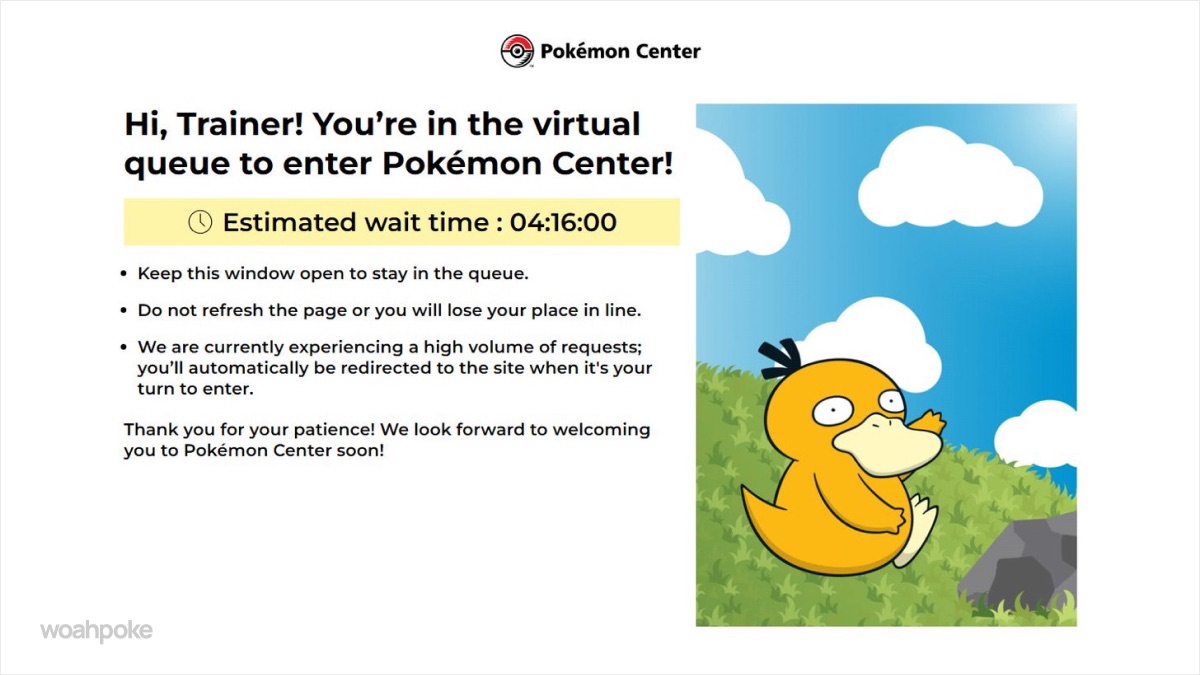
When you join the queue, you’ll be greeted by Psyduck and an estimated wait time in HH:MM:SS. Don’t panic when it looks insane. It jumps around a lot and it’s normal, we’ve been assigned a 30 hour ETA and then watched it immediately drop to 5 hours, then 1. The number isn’t linear and takes a while to sort itself out, so hang tight!
Don’t refresh while in the queue
Once you’re in the queue, leave the page alone. Refreshing doesn’t move you up, it kicks you back to the end of the line. The queue is holding your place automatically, so the best thing you can do is nothing. Let it run, even when the estimated time looks scary.
Don’t change networks while in the queue
Switching networks mid-queue (jumping from WiFi to cellular, or reconnecting to a different WiFi) changes your IP address, and the queue often reads that as a brand new session. That means losing your place and starting over. Pick the most stable connection you have before you join, and stay on it the whole way through!
Once you’re in
Slow your clicks
The site’s anti-bot security watches how fast you interact with it. Leave roughly two seconds between clicks, and don’t spam refresh or panic click during a drop. Fast, machine-like activity is the number one thing that triggers a block, so moving deliberately actually gives you a better shot than racing.
Don’t open a pile of tabs
Having lots of product pages open at once is another common trigger for the anti-bot system. Keep it to a single tab and work through it calmly.
Match your billing to your shipping
Make sure your billing information matches your shipping address. Mismatches are a common cause of payment failures at the final step, and during a fast checkout that can cost you the order.
Use the right card
We’ve run into repeated issues with American Express getting declined or flagged at checkout, while Visa and Mastercard have gone through cleanly. If you have the choice, use Visa or Mastercard for the smoothest checkout.
One order per household
Pokémon Center typically limits drops to one order per household. Trying to sneak multiple orders through can get them all cancelled, so it’s safest to stick to one.
Pokémon Center Error Codes Explained
If something breaks mid-drop, here’s what each error actually means and what you can do about it from our and community members’ experience. Most of them come down to the same root cause: the site’s anti-bot security thinks you might be automated.
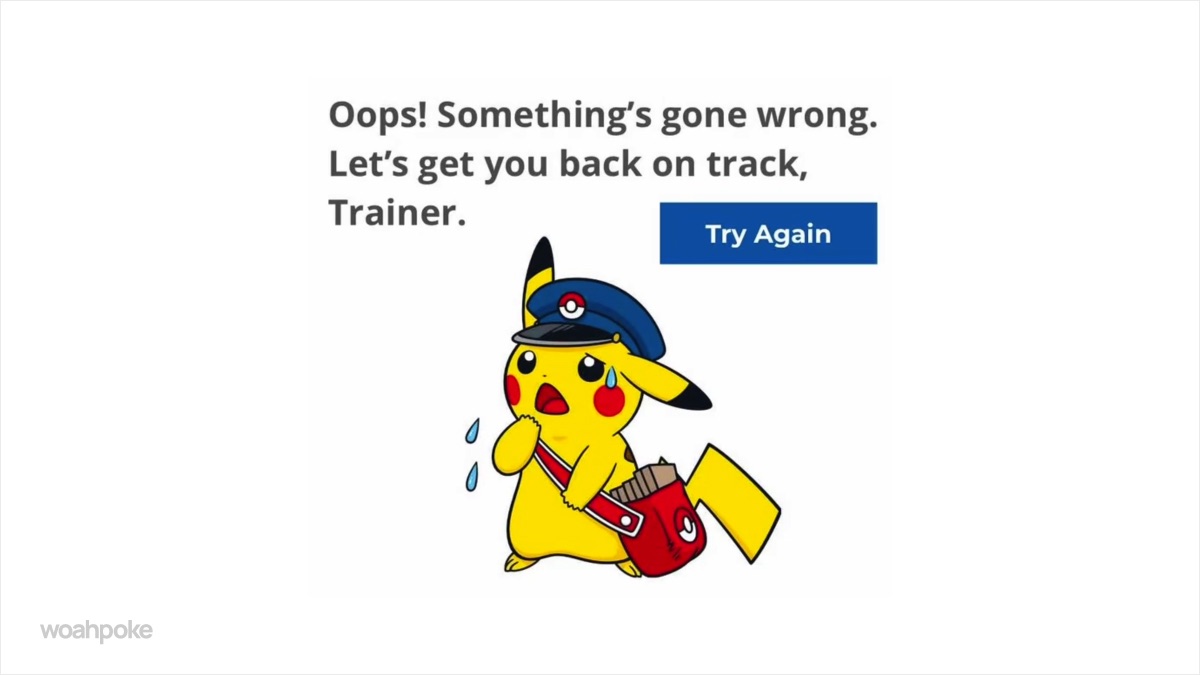
“Let’s get you back on track, Trainer”
This means you’ve been temporarily blocked by the anti-bot system, triggered by fast clicking, too many open tabs, or strict browser extensions like ad blockers and privacy shields.
What to do: honestly, we haven’t found a reliable fix for this one. Every time it’s happened to us, we’ve just been booted back into the queue. Prevention is your best bet, keep it to one tab, click calmly, VPN off, and turn off privacy extensions before a drop.
Error 15 (Access Denied)
The firewall has blocked your IP or browser setup because it suspects automated traffic. It’s the most common one for people using a VPN, a proxy, or aggressive privacy and ad-blocking extensions.
What to do: turn off any VPN or proxy, disable ad blockers and privacy extensions, and try again. Networks that share an IP across many users can also trigger this (see the VPN and Starlink section below).
Error 16
Another access/session block from the same security system, showing up in the same situations as 15, a flagged connection or fast activity.
What to do: same fix as 15. Drop the VPN, disable extensions, slow down, and retry.
Error 17 (Session Block)
Your browsing session has been temporarily frozen, usually from refreshing too fast, panic-clicking, or moving through forms at machine-like speed.
What to do: slow down and start a fresh session. Clearing your cache before the drop (see above) helps prevent this one in the first place.
Error 18 & Error 20
Connection or rate-limit blocks from the server side. The site is restricting your IP because it’s seen too many rapid requests in a short window.
What to do: wait it out. These are time-based, so a few minutes of not hammering the site usually clears them. Refreshing only resets the clock against you.
Error 43 & Error 503
Server-side errors that appear when the site is overwhelmed, usually right as a big drop goes live. A 503 means the server is temporarily unavailable because too many people are hitting it at once.
What to do: this one’s not on you, it’s the site buckling under load. Stay in the queue, don’t close out, and wait. Refreshing can send you to the back of the line.
“Error while processing payment”
This hits right at checkout. It usually means the payment step timed out or got flagged, often because the item sold out while you were queuing, or the session got shaky under load.
What to do: don’t immediately re-submit. Check for a confirmation email to see if the order actually went through before trying again.
Why VPNs and Starlink Get You Blocked
The most common cause of errors 15 and 16 is your IP looking suspicious, and there are two culprits people don’t expect.
VPNs route your traffic through a shared server that thousands of others also use, so the site sees a flood of requests from one IP and reads it as a bot attack. If you’re getting error 15, turn your VPN off completely before you load the page.
Starlink catches a lot of people out. It uses CGNAT (carrier-grade NAT), meaning many Starlink customers share the same public IP rather than each having their own. So even with no VPN, the site can see what looks like a crowd all hammering it from one address, and flags it as bot traffic. There’s no clean fix if Starlink is your only connection, but switching to another network for the drop (like a cellular hotspot) sidesteps it.
The rule of thumb: the site wants to see a normal single-user connection. Anything that makes many users look like one, or one look like many, tends to trigger a block.
That’s everything we’ve learned the hard way about surviving a Pokémon Center drop. Got a tip or an error we didn’t cover? Let us know in the comments.
woahpoke is supported by its audience · when you buy something using the retail links in our posts, we may earn a small commission at no additional cost to you. Read more about our affiliate disclaimer.